FigJam HubSpot Cards (beta)
For HubSpot RevOps and developer teams · Beta
Map HubSpot workflows on a FigJam board
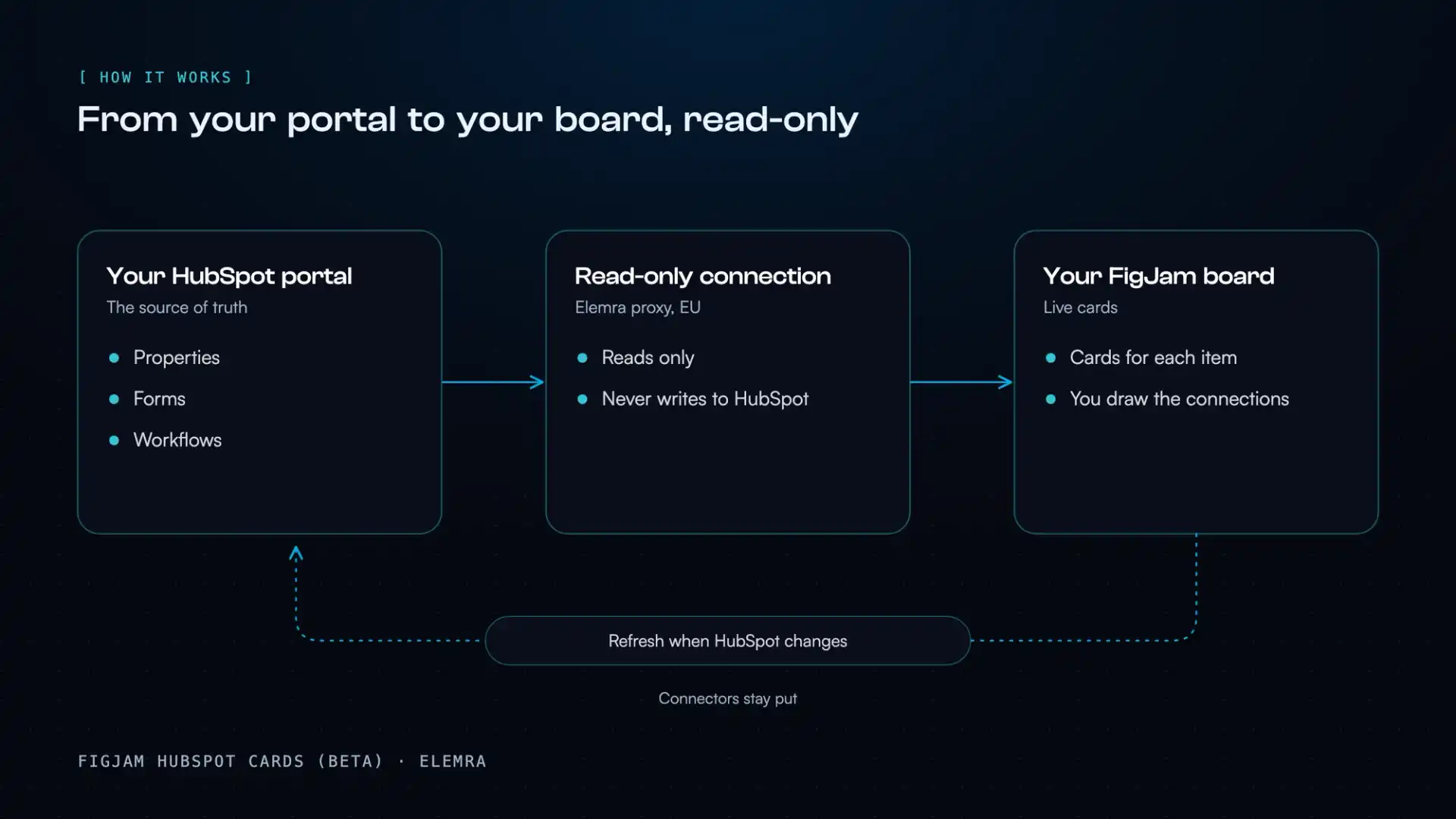
Plan workflow logic with your real HubSpot setup, not a sketch. Pull properties, forms and workflows onto a FigJam board as live cards, then draw how they connect.
Use it to decide logic, get client sign-off, and see where each property and value is used.
Read-only. It never changes anything in HubSpot.
Connect HubSpot
Approve it on HubSpot's own screen
Place a card
Pick any property, form or workflow
Draw your process
Connect cards, or single values
Refresh
Cards update, your lines stay
The idea
HubSpot supplies the facts. You draw the logic.
Cards come straight from your HubSpot account. The connections between them are your decisions.
What teams use it for
Select a card to see it.
Map workflows
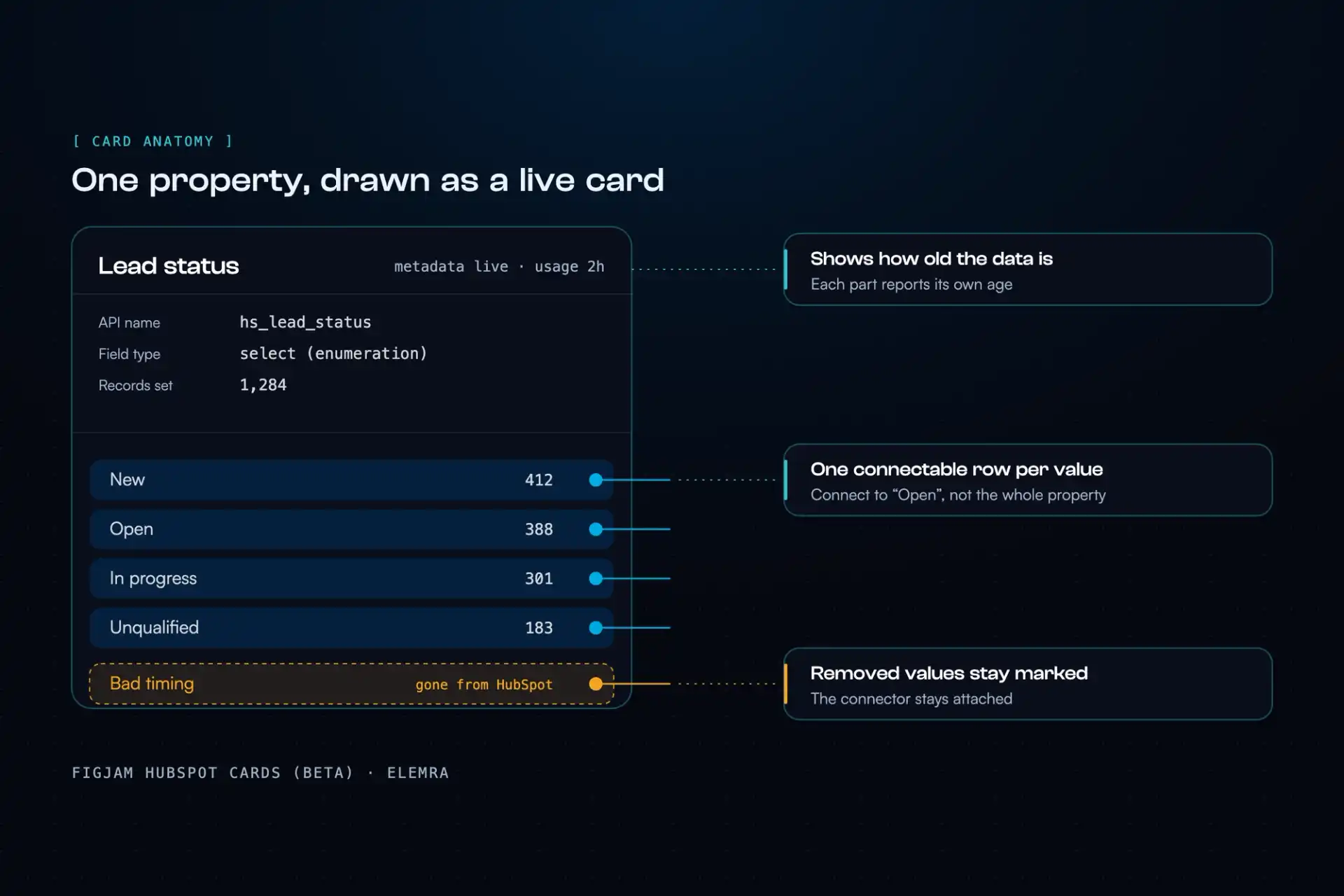
Lay out how records move through your workflows, using your real properties and values.
Decide logic per value
Every dropdown value is its own row. Connect "Booked" to one branch and "No-show" to another.
Get client approval
Clients review the real fields and values on one board, not a drawing that may be wrong.
Trace property usage
See which forms and workflows use a property, with links straight into HubSpot.
See which values are used
Record counts per value show what's live and what nobody uses.
Keep it current
Refresh from HubSpot and your lines stay. Values deleted in HubSpot stay on the board, marked "gone from HubSpot".
Map workflows
Lay out how records move through your workflows, using your real properties and values.
Decide logic per value
Every dropdown value is its own row. Connect "Booked" to one branch and "No-show" to another.
Get client approval
Clients review the real fields and values on one board, not a drawing that may be wrong.
Trace property usage
See which forms and workflows use a property, with links straight into HubSpot.
See which values are used
Record counts per value show what's live and what nobody uses.
Keep it current
Refresh from HubSpot and your lines stay. Values deleted in HubSpot stay on the board, marked "gone from HubSpot".
Your data
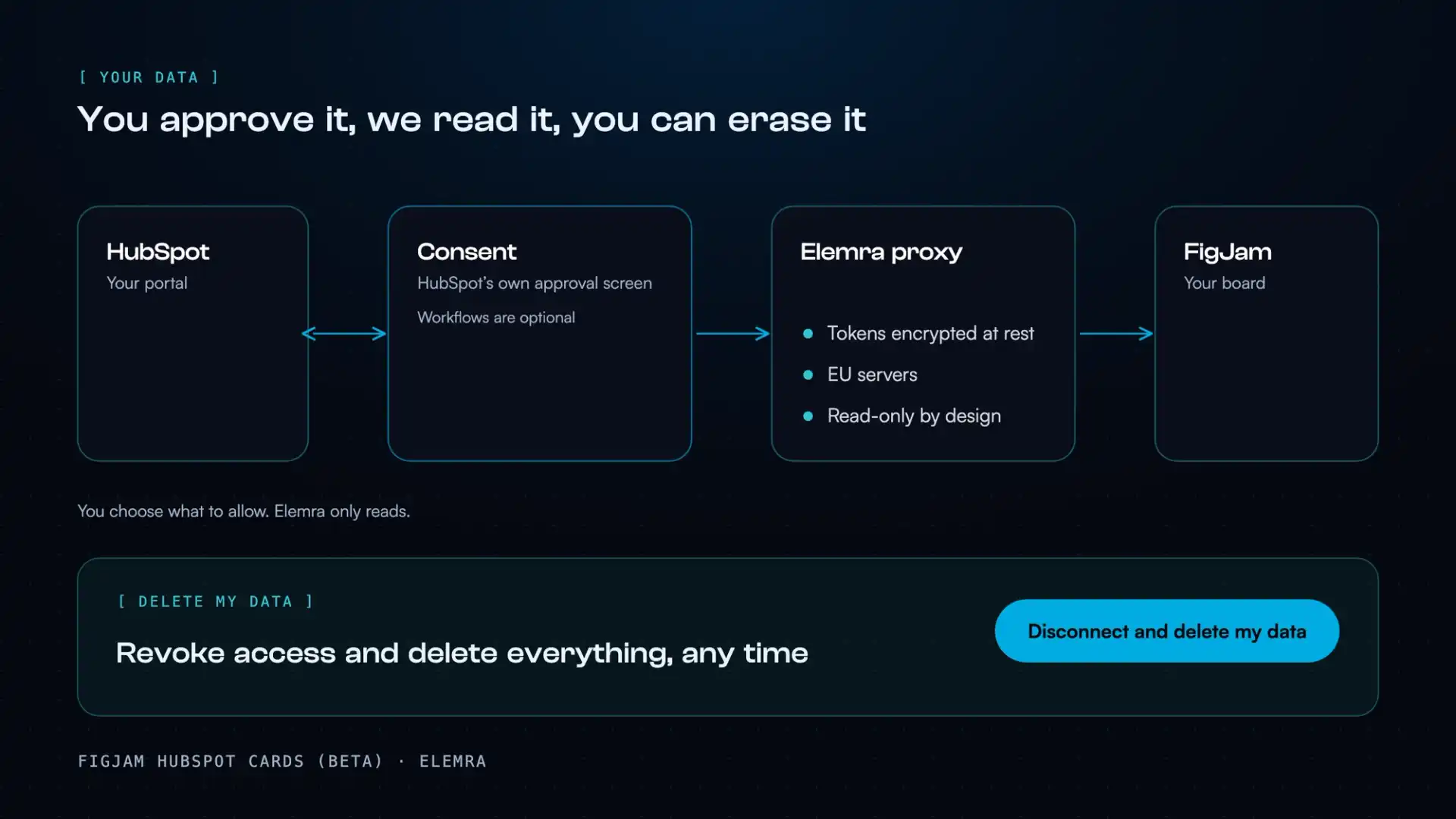
Read-only. Yours to delete.
- Never changes anything in HubSpot.
- You approve it on HubSpot's own screen. Workflow access is optional.
- Access is encrypted and stored in the EU.
- Delete everything from inside the plugin, any time.
Beta
Map your next workflow with it
Download, import it into the Figma desktop app, connect HubSpot. Setup steps are in the download. Feedback goes straight to Fabio.